
Finding it hard reaching those tricky shots when playing Bubble Witch Saga?
Not Any More!
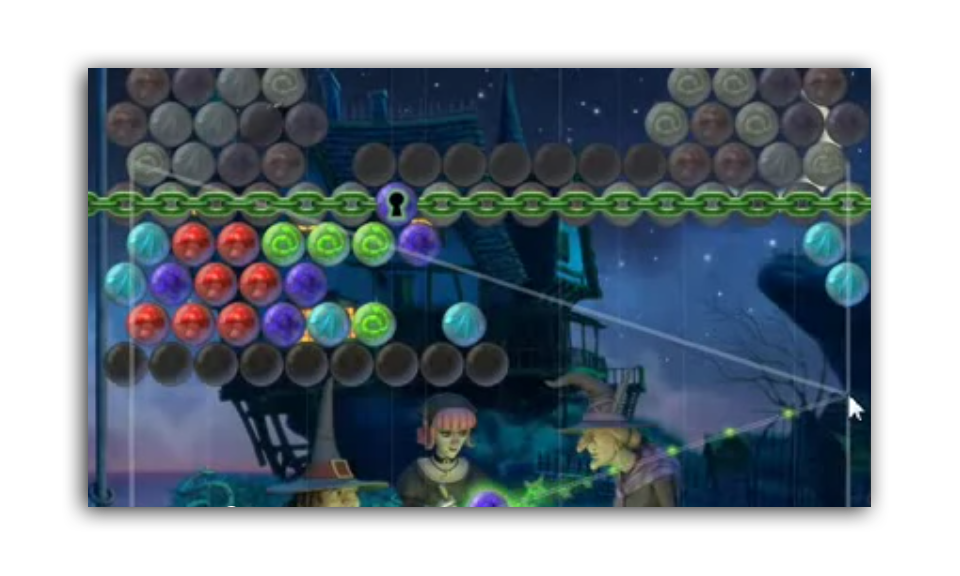
Playing Bubble Witch Saga has never been easier, but it doesn't end there, this tool may be used for
ANY GAME THAT REQUIRES PRECISION SHOOTING
This amazing little FREE tool allows you to line up your shots at any angle.
So simple to use, all you do is hold down your SHIFT KEY to place the Starting Point and if you need your mouse to move more slowly, simply hold down the CNTRL KEY.
Are you ready to give it a try?
Just click this image and ZeScreenRuler will install on your computer.

All you need to do is select RUN and away you go.
Here is a look at how you can set up your settings.
Here is a look at how you can set up your settings.
The default key to TURN OFF and ON
is your NUM LOCK Key
but this can be changed in the settings.

Lets go through those settings again:
SHIFT KEY
Places your starting point.
CTRL KEY
Slows down your mouse.
NUM LOCK
Turns the Ruler OFF and ON.
This software is a tool
to make your game easier and
more enjoyable.
to make your game easier and
more enjoyable.
You will not need to purchase
expensive Charms or other
power ups on any Games that
require precision shooting.
Because this tool resides in a
file on your computer,
you can even use it with games
that you don't play on line.
This Tool is FREE but if you wish to donate to the developer, click on the
PayPal Donate button below.

You may also leave FEEDBACK or
CONTACT THE DEVELOPER
using the same link.
The developer previously said:
...you need to adjust the start point carefully and figure out where exactly the balls bounce. Take some time on an easy level to figure it out playfully.
Note that I added a button "Restore Defaults & Restart", which may help if someone managed to change "Num-Lock" to something else without realizing, or change any other settings.
In case the program is running, but not working properly and the hot key is not working, it should also be possible to re-open the options dialog by starting the program again. If all else fails, try a reboot. When you log on again, and if ZeScreenRuler is in auto-start mode, it opens up the dialog again, minimized to the task bar. Then you can fix it or deactivate it. (If it's not in auto-start mode, then it is deactivated; of course you can start it again by double-clicking.)
Best
Axel
No comments:
Post a Comment